How to set up and load a CDF file
To use geocoding in Pythagoras, you must tell the software which CDF file should be used to interpret survey codes. This article explains how to configure, load and reload a CDF file so field survey data is converted into drawing objects correctly.
STEPS
Preparation
Make sure your CDF file is stored locally on your computer.
Close all open drawings in Pythagoras.
Set the CDF file
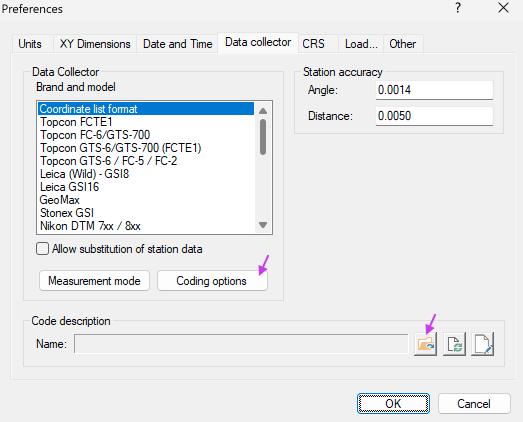
Go to Settings > Preferences.
Open the Data collector tab.
Locate the Code Description section.
Click the folder icon and select your CDF file.
Confirm the selection.
Configure coding options
In the same window, click Coding Options.
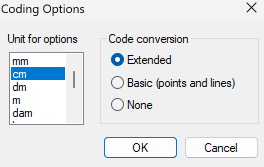
Select the correct unit for options, for example cm.
Choose Extended coding so the CDF is actively used during import.
Click OK to confirm.
Load the CDF file
Click OK to close the Preferences window.
Pythagoras loads the CDF file automatically.
If errors are detected, the Text Editor opens and displays the problem.
RESULT
The CDF file is set up and ready for use. Survey codes will be interpreted according to the rules defined in the CDF and converted into drawing objects during import.
If the CDF name is not shown in red, all referenced elements are available and the configuration is correct.
Was this article helpful?
That’s Great!
Thank you for your feedback
Sorry! We couldn't be helpful
Thank you for your feedback
Feedback sent
We appreciate your effort and will try to fix the article