Extending and Trimming Lines in Pythagoras
In Pythagoras there are several tools to extend or trim lines - this includes not only straight lines but also arcs and polylines. Which tool you use depends on how you want to change the line.
Good to know
- By default, the new endpoint takes over the original Z-value of the object you extend to.
- To maintain the original slope, hold Shift and click . The new endpoint will follow the slope of the line and get a consistent Z-value.
- To keep the original endpoint, hold Ctrl / Alt and click . Useful if the original endpoint is a survey point. The result is that two points remain.
- Move the endpoint of a line manually
- Extend or trim a line to meet another object (join)
- Connect lines at their intersection point (join)
- Trim or extend multiple lines at once using a boundary
Move the endpoint of a line manually
Use Extend Line if you want to fully control where the endpoint ends up.
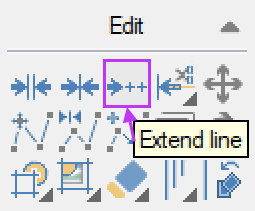
Click on the line you want to alter, either to trim or extend.
Click on the endpoint of that line that you want to move.
Choose one of these options:
Click to define the new position for the endpoint.
- If you snap to another object, the new endpoint takes over the Z-value of that object.
- If you do not snap, you must define the Distance manually.Hold Shift and click to maintain the original slope.
Hold Ctrl/Alt and click to retain the original endpoint.
Hold Shift+Ctrl/Alt and click to maintain the original slope and endpoint.
Extend or trim a line to meet another object (join)
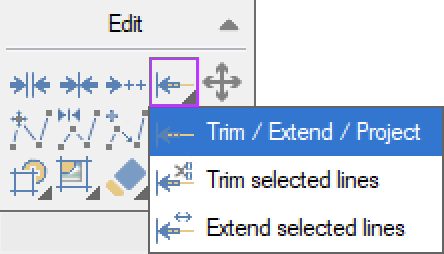
Use Trim / Extend / Project if you want a line to automatically extend or trim until it 'meets' another line.
Click the line you want to adjust.
Click* the object that should serve as the boundary:
Click to have the new endpoint take over the Z-value of the boundary line.
Hold Shift and click to maintain the original slope.
Hold Ctrl/Alt and click to retain the original endpoint.
Connect lines at their intersection point (join)
Use Trim / Extend / Project if you want both objects to meet at their intersection.
Click the line you want to adjust.
Double-click the second object to make both extend/trim to the intersection point. The original slope of both objects is maintained.
Double-click: creates a new intersection point with a height annotation.
Hold Ctrl/Alt and double-click: creates a new intersection point while keeping the two original points.
Trim or extend multiple lines at once using a boundary
Use Trim Selected Lines to trim several lines at once to the same boundary.
Select the lines you want to trim.
Start the Trim Selected Lines tool.
Click the boundary line.
Move the cursor to the side you want to retain
- Choose one of these options:
Click to have the new endpoints take over the Z-value of the boundary line.
Hold Shift and click to maintain the original slope.
Hold Ctrl/Alt and click to retain the original endpoint.
Use Extend Selected Lines Extend several lines at once to the same boundary.
Select the lines you want to extend.
Start the Extend Selected Lines tool.
Click* the boundary line:
Click to have the new endpoints take over the Z-value of the boundary line.
Hold Shift and click to maintain the original slope.
Hold Ctrl/Alt and click to retain the original endpoint.
Was this article helpful?
That’s Great!
Thank you for your feedback
Sorry! We couldn't be helpful
Thank you for your feedback
Feedback sent
We appreciate your effort and will try to fix the article