Licensing: Install New key
Installation failed with error 5.
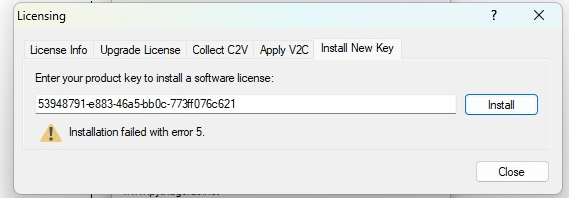
Perform a manual installation of the license met C2V en V2C uitwisseling (via RUS of localhost)
SOLUTION
Close Pythagoras
1. On client side - CREATE C2V
Via AnyDesk > File transfer
See: https://pythagorasbv.freshdesk.com/a/solutions/articles/77000582511?lang=en
OR
Install RUS RUS_CXBCO_7.3.zip
- Open the RUS utility.
- Navigate to the Collect Status information tab.
- Select the option: Installation of new protection key.
- Press Collect information to generate a C2V file.
- In the File Explorer window, select a location for the C2V file to be saved.
- Transfer C2V to support side via AnyDesk > Filetransfer add C2V to your desktop
2. On support side - GENERATE V2C
Go to http://lm.pythagoras.net:8007/ems/
menu Entitlements
tab Entitlements
Search: Account name
Actions (...) Activate
select C2V
Generate V2C and download
Open Pythagoras, choose macro Upgrade
Open V2C with textedit and copy hasp_id = License number
Add License number to Salesforce
3. On client side - APPLY V2C
Start Pythagoras
Go to Licensing > tab Apply V2C
Click Update and select the V2C file
Close the window and restart Pythagoras
Was this article helpful?
That’s Great!
Thank you for your feedback
Sorry! We couldn't be helpful
Thank you for your feedback
Feedback sent
We appreciate your effort and will try to fix the article