LOCAL SOFTWARE LICENSE
Collect C2V
Use this procedure to collect a C2V file from your local software license when requested by Pythagoras Support.
A C2V file contains information about your current software license. Support uses this file to generate the required license update.
In Pythagoras
Start Pythagoras.
Open the Licensing window.
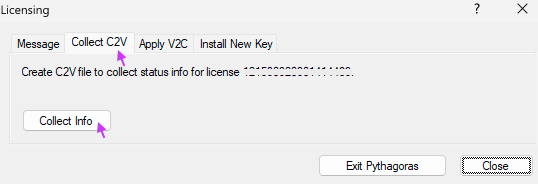
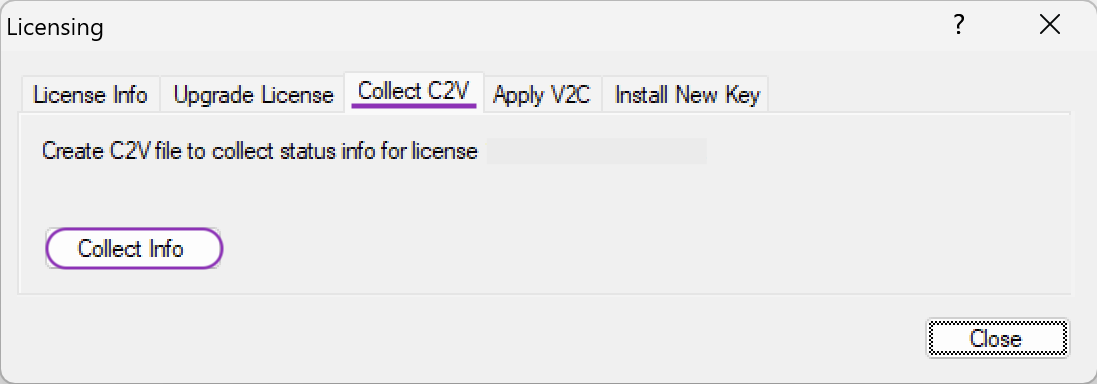
Go to the tab Collect C2V.
Click Collect Info.
- Choose a location to save the C2V file.
- Send the saved C2V file to Pythagoras Support: support@pythagoras.net
If Pythagoras is not running
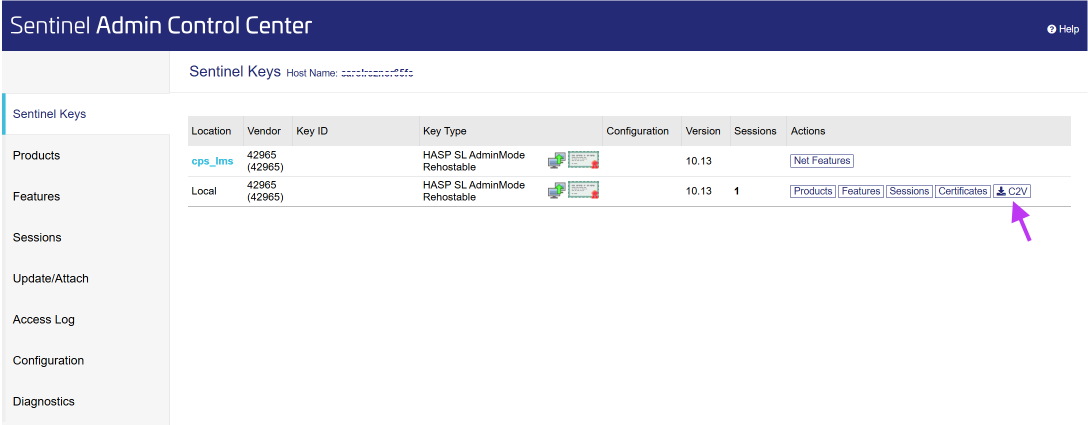
- Open a browser and go to the Sentinel Admin Control Center: http://localhost:1947
- Find the license in the list.
- In the Actions column, click C2V.
- The C2V file is downloaded automatically, usually to your Downloads folder.
- Send the downloaded C2V file to Pythagoras Support: support@pythagoras.net
RELATED ARTICLES
How to fix 'Installation failed with error 5'.
Was this article helpful?
That’s Great!
Thank you for your feedback
Sorry! We couldn't be helpful
Thank you for your feedback
Feedback sent
We appreciate your effort and will try to fix the article