Color a DTM by Elevation
By default, a DTM is displayed as a triangulation. This shows the terrain structure but does not clearly highlight elevation differences. By applying a color map based on elevation, you immediately see height variations, slopes, and terrain transitions. This improves both analysis and presentation.
STEPS
Open the DTM Properties
Right-click the triangulation (DTM) and choose Properties.
Or select the terrain model from the DTM dropdown in the toolbar Active Settings.
Alternative methods via Display Options (Ctrl+I)
Open Settings > Manage Terrain Models…
or press the DTM Manager icon in the toolbar Active Settings.
In Display Options, open the DTM tab, select the terrain model, and click Properties.
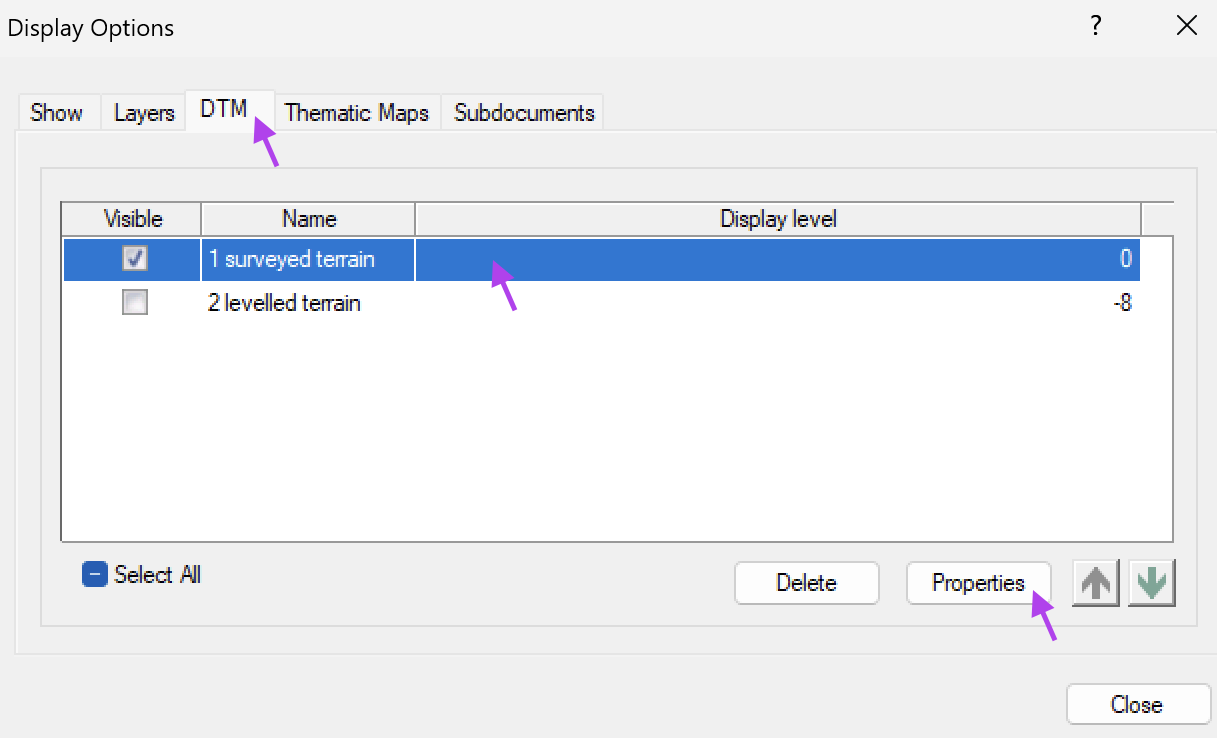
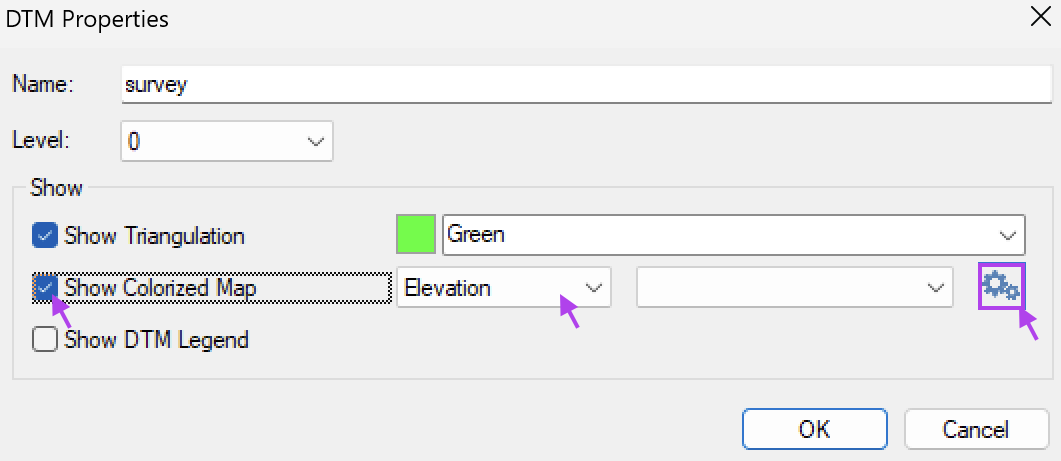
Activate the colorized map
In the DTM Properties window:
- Enable Show Colorized Map.
- Select Elevation from the dropdown.
- Click the settings icon
 next to the color map selection.
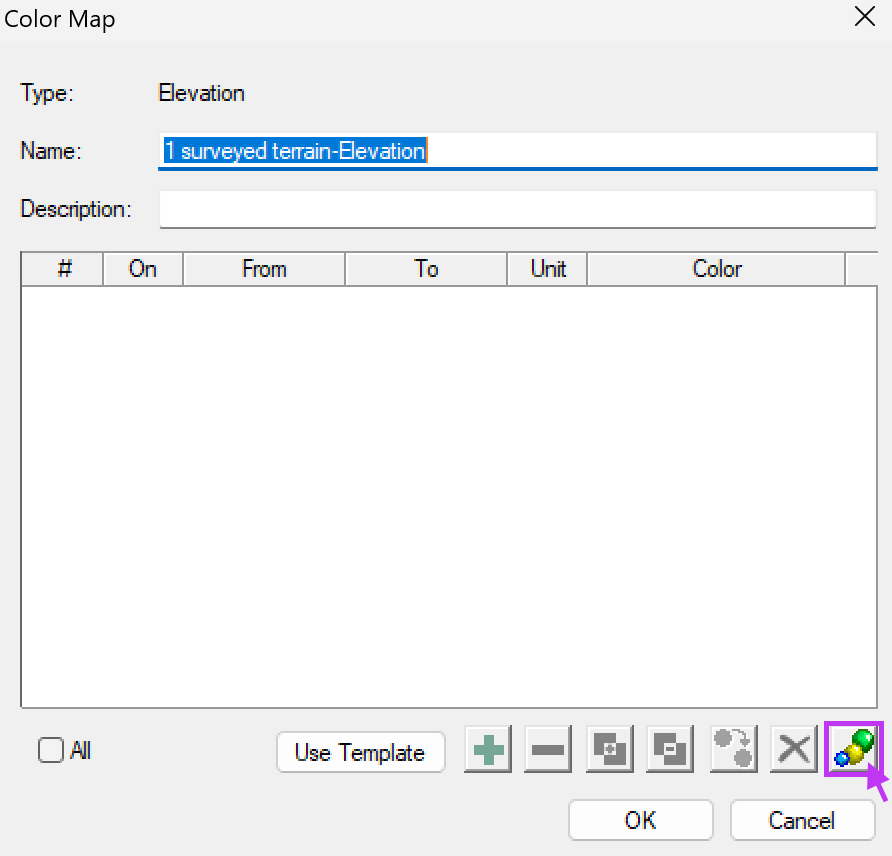
The Color Map window opens.
Create a new color map
In the Color Map window:
Click the autofill icon  to automatically generate color levels.
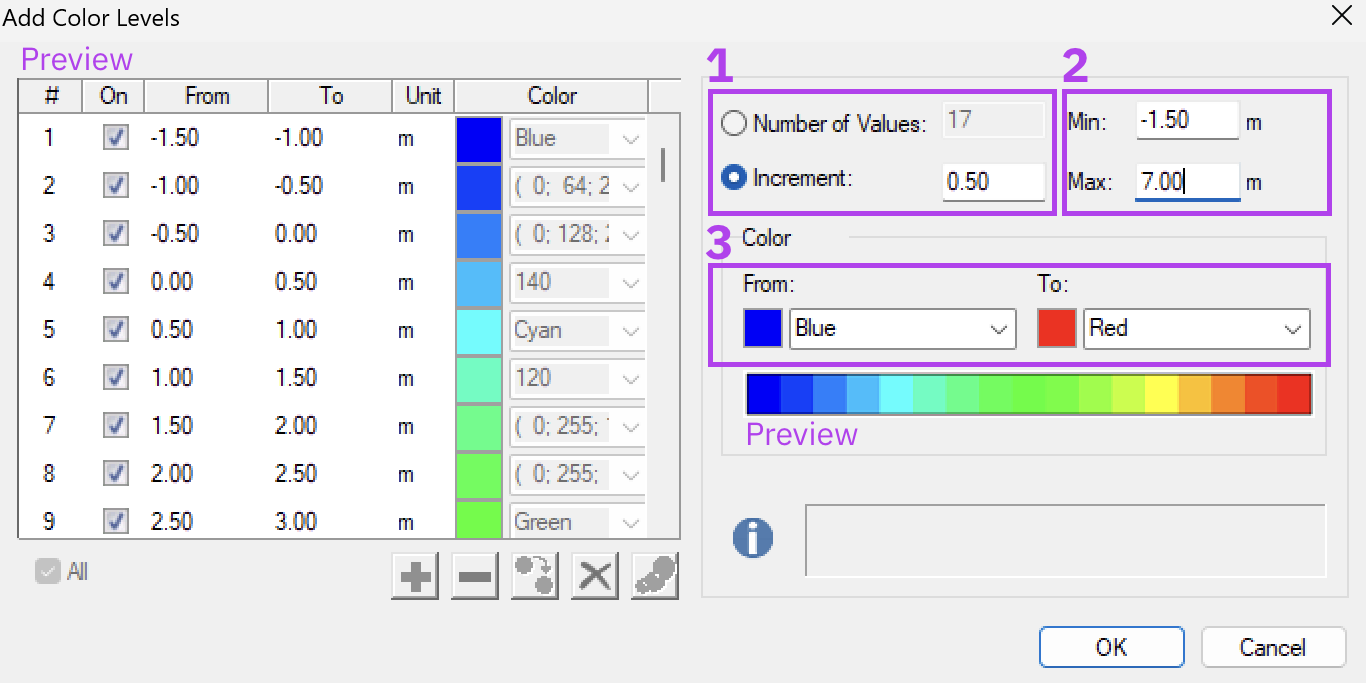
The Add Color Levels window opens.
Define the elevation levels
In Add Color Levels window:
1. Define the levels
Choose how the levels are divided:
- Number of Values defines how many color levels are generated.
- Increment defines a fixed elevation step (for example 0.50 m or 1.00 m)
2. Define the range
Check or adjust the range:
- Min represents the lowest elevation.
Max represents the highest elevation.
By default, the range is based on the data in the current drawing.
You can work with:
The DTM range: a dynamic range based on the DTM values.
Fixed Min/Max: a fixed range with manually defined Min and Max values, useful when comparing multiple drawings. Or having your colors coincide with fixed intervals of contourlines.
3. Define the colors of the gradient:
- Select the From color for the lowest values (for example Blue).
Select the To color for the highest values (for example Red).
The gradient preview updates automatically, so you can immediately see the color transition you are creating.
Click OK in each window to apply the color map.
RESULT
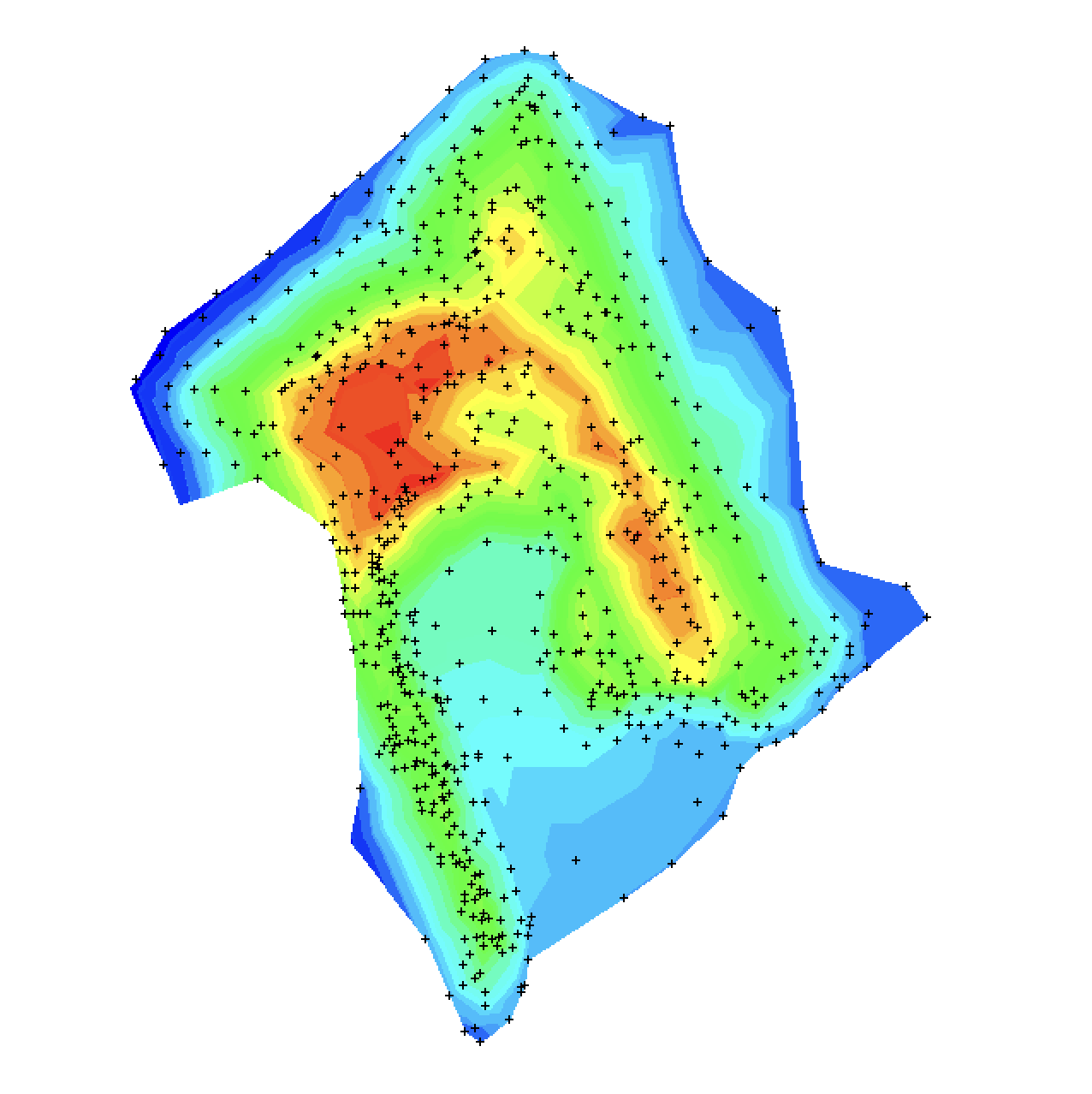
The terrain model is displayed as a colorized elevation map instead of only a triangulation. Elevation differences become immediately visible, making it easier to interpret slopes, embankments, and terrain variations.
TIPS
Make sure the correct DTM is visible in Display Options > DTM if the color map does not appear.
Use 5 to 7 classes for a clear and readable result.
Define a fixed Min and Max range when comparing different project phases.
Combine the color map with contour lines for more detailed analysis.
Use Open in 3D Window to visually inspect the terrain relief.
If you want to manage multiple color maps or share them with colleagues, also read the article: How to manage your Color Maps
Was this article helpful?
That’s Great!
Thank you for your feedback
Sorry! We couldn't be helpful
Thank you for your feedback
Feedback sent
We appreciate your effort and will try to fix the article