Create and annotate a polygon
In Pythagoras, a polygon is a closed figure bounded by line segments defined by points, arcs, or spirals. A polygon may also be bounded by one circle. Pythagoras calculates the area and perimeter of each polygon automatically. Polygons can be filled with customizable patterns and formatted using border, color, and background options.
Create a polygon
There are two ways to create a polygon in Pythagoras:
Draw manually using points, lines, arcs, or circles.
Create automatically by clicking inside an enclosed area.
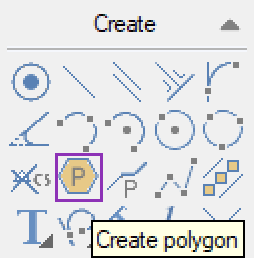
Option 1: Draw manually
You can draw a polygon step by step by selecting its defining elements.
1. Go to Create > Create Polygon.
2. To start click on the first point.
3. To form the boundary, click consecutively on:
existing points or create new points,
lines, arcs, spirals, or polylines that are part of the perimeter.
To automatically trace connected linework:
Double-click a segment to automatically follow connected linework until a junction or open end.
Hold SHIFT and hover over connected linework to auto-trace the boundary.
Each selected segment is displayed with a thick line to indicate progress.
Use BACKSPACE or Delete to undo the last selection.
Press Esc if you want to start over and clear all progress.
4. Finish the polygon, by either:
Click the starting point again to close the polygon.
Press ENTER
5. The polygon is filled with the active pattern to show completion.
Option 2: Create automatically
You can also let Pythagoras detect and build a polygon for you.
Go to Create > Create Polygon.
Choose one of the following methods:
Click inside a closed area bounded by linework.
Hold CTRL while clicking to exclude inner islands (holes) from the polygon.
Click on a circle to create a polygon that fills the circle’s circumference.
Pythagoras automatically traces the nearest continuous boundary and creates the polygon.
The created polygon appears filled with the active pattern, ready for formatting or analysis.
Display area and perimeter
Activate the Annotation tool.
Right-click and choose either:
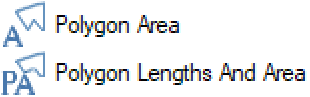
Click on the polygon.
Pythagoras displays area and/or perimeter as text inside/along the polygon.
The annotation uses the active annotation settings (color, size, number of decimals).
Format a polygon
Select the polygon.
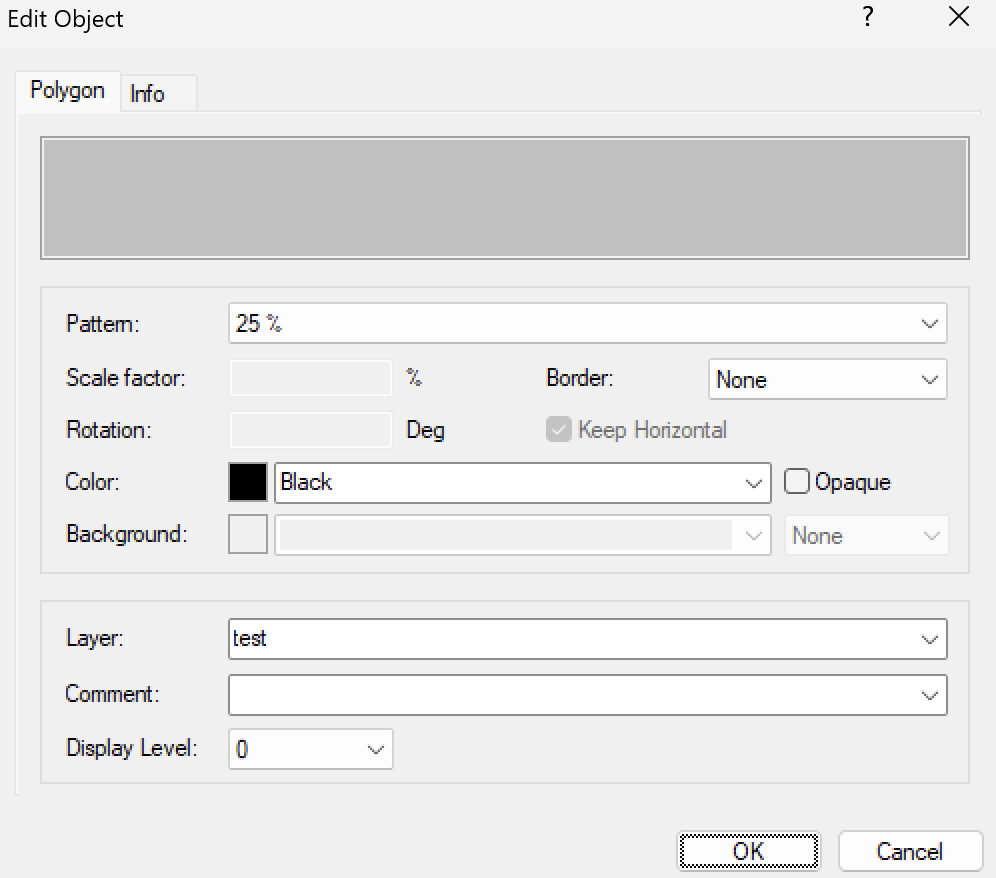
Open the Edit Object window, options:
go to menu Format > Edit attributes....
right-click: Edit Attributes
double-click on the polygon
Choose the desired parameters:
Fill pattern (horizontal, vertical, diagonal, cross, border, grayscale)
Border type
Opacity
Background color
Click OK to apply changes.
Aligning patterns (only combined with Library patterns)
Create a custom coordinate system with Create coordinate system using two points from the polygon.
Select one or more polygons.
Choose Format > Orient> Pattern.
The fill pattern will align according to the custom coordinate system and share its origin.
Was this article helpful?
That’s Great!
Thank you for your feedback
Sorry! We couldn't be helpful
Thank you for your feedback
Feedback sent
We appreciate your effort and will try to fix the article