Point Numbers and Renumbering
By default, Pythagoras automatically assigns a point number to every new point. You can define how new points are numbered and renumber existing points in several ways.
What are point numbers?
A point number is the unique identifier of a point in the drawing. By default, Pythagoras uses an ascending numeric sequence, but alphanumeric numbering is also supported, for example ST1, REF15PNT or 0010.
The next point number is stored with the drawing and restored when the drawing is reopened. Pythagoras also shows which point number ranges are still available in the active drawing.
Numbering new points
STEPS
- Go to Settings > Document Settings > Next Point Number.
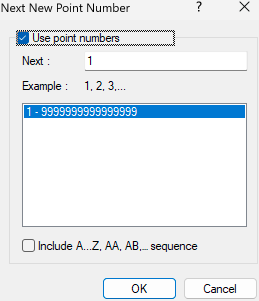
- Enable or disable Use point numbers.
- Enter the desired Next point number.
- Enable Include A...Z, AA, AB, ... sequence if you want to use alphabetical sequences.
- Click OK.
From that moment on, every new point receives the next available point number.
This setting only affects newly created points. Existing point numbers are not modified.
Renumber existing points
First, select the points you want to renumber.
Then go to Format > Renumber Points.
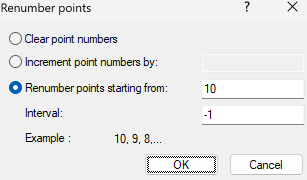
Three options are available:
• Clear point numbers
Removes the point numbers from the selected points while keeping the points themselves.
• Increment point numbers by
Adds a fixed value to the existing point numbers of all selected points.
• Renumber points starting from
Assigns new point numbers starting from a specified value.
- Select Renumber points starting from.
- Enter the starting point number.
- Specify the Interval.
- Click OK.
A positive interval creates an ascending sequence, for example 1, 2, 3....
A negative interval creates a descending sequence, for example 10, 9, 8....
If the new numbering would create duplicate point numbers, Pythagoras displays a warning before continuing.
When polygons are selected, the points are renumbered in the order they appear in the polygon rather than randomly.
Renumbering with Bonus Tools
Go to Bonus Tools > Point Tools > Renumber Points.
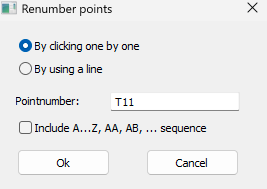
After starting the command, choose one of the following methods:
- By clicking one by one – Click each point in the order you want to assign the new point numbers.
- By using a line – Select a line. Points located close to the selected line are renumbered following the line.
The starting point number can be numeric or alphanumeric, and you can enable Include A...Z, AA, AB, ... sequence to use alphabetical numbering.
RESULT
You can define how new points are numbered, increment, renumber or clear existing point numbers, and use Bonus Tools for interactive renumbering along a user-defined path.
Settings > Document Settings > Next Point Number
Format > Renumber Points
Bonus Tools > Point Tools > Renumber Points
Was this article helpful?
That’s Great!
Thank you for your feedback
Sorry! We couldn't be helpful
Thank you for your feedback
Feedback sent
We appreciate your effort and will try to fix the article