Symbol Management
The Symbol Manager in Pythagoras allows you to organize and manage your library of custom symbols, line styles and patterns. You can rename styles, organize them into groups, delete them or make them available in other drawings.
Open the Symbol Manager
Go to Settings > Symbols > Symbol Manager...
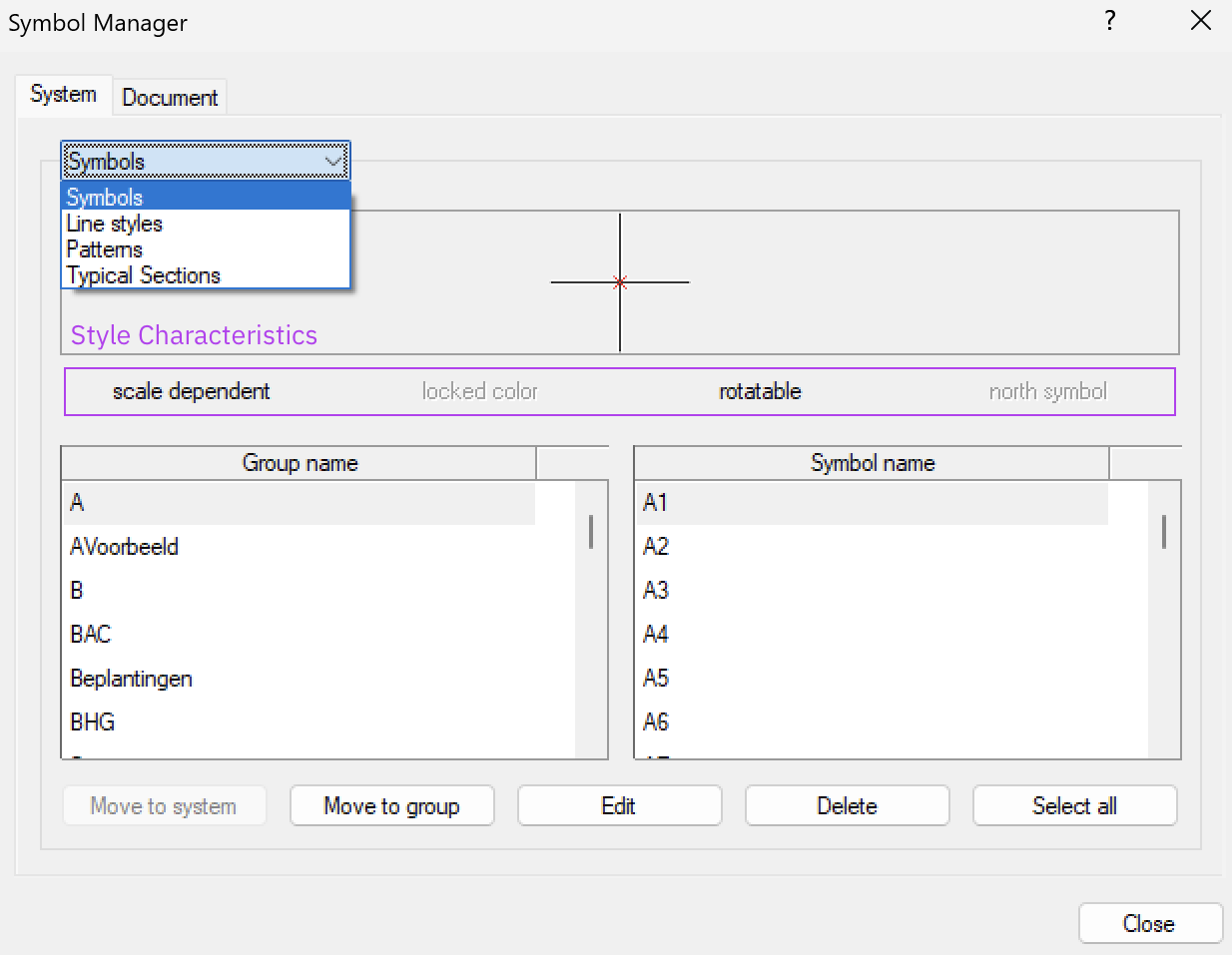
In the Symbol Manager window, you can choose between two storage locations: System and Document.
Use the dropdown menu to select the type of style you want to manage:
Symbols: custom point symbols.
Line styles: custom appearances for lines.
Patterns: fills for polygons.
Typical Sections: saved typical section definitions.
The groups are displayed on the left, while the styles belonging to the selected group are listed on the right.
Above the lists, you can see the characteristics of the selected style. Active characteristics are displayed in black, while inactive ones appear in grey.
Click Edit to change the name, group or characteristics of a selected style.
Where are your styles stored?
You can save custom styles in two locations: in the current drawing (Document) or in the general Pythagoras library (System).
| Document | System | |
|---|---|---|
| Available in | The current drawing | All drawings |
| Stored in | The drawing file (.PYT) | The system library (PYTHAGOR.LIB) |
| Best used for | Project-specific styles | Styles you want to reuse in other drawings |
A style stored only in a document is not automatically available in other drawings.
To make a style available in other drawings, you can add it to the system library using Move to system.
What can you do in the Symbol Manager?
Organize your styles
The Symbol Manager allows you to organize your custom styles:
Select groups: click a group on the left to display its styles.
Rename a style: select a style and click Edit. You can change its name or group in the window that opens.
Move to group: move a selected style to another group.
Select all: select all styles in the current list.
Use clear group names, such as 'Cables', 'Buildings' or 'Traffic', to make your styles easier to find.
Make styles available in other drawings
Do you want to use a style from your current drawing in other drawings as well?
Open the Document tab, select the style and click Move to system.
The style is added to the system library, making it available for use in other drawings.
Delete styles
Select a style and click Delete to remove it.
Important: A style that is currently used in an open drawing cannot be deleted or overwritten.
Import and export the system library
Do you want to share your custom symbols, line styles and patterns with a colleague or transfer them to another computer? You can exchange the system library file (PYTHAGOR.LIB) using the import and export functions in Pythagoras.
Important: Close all drawings in Pythagoras before importing or exporting the system library. No document tabs may remain open.
Go to Settings > Symbols and select:
Export System Symbols: export the system library to a separate file that you can save or share.
Import System Symbols: import a previously exported library file to add its styles to your system library.
These functions are used to exchange the system library, not to export a single selected symbol.
This allows you to transfer your custom styles to another computer without having to recreate them.
Was this article helpful?
That’s Great!
Thank you for your feedback
Sorry! We couldn't be helpful
Thank you for your feedback
Feedback sent
We appreciate your effort and will try to fix the article