How your printer determines the available paper sizes
The paper sizes you can choose in Pythagoras depend on the selected printer. This applies to both physical printers and virtual PDF printers. This article explains how this works and how to make the paper sizes you need available for printing or PDF output.
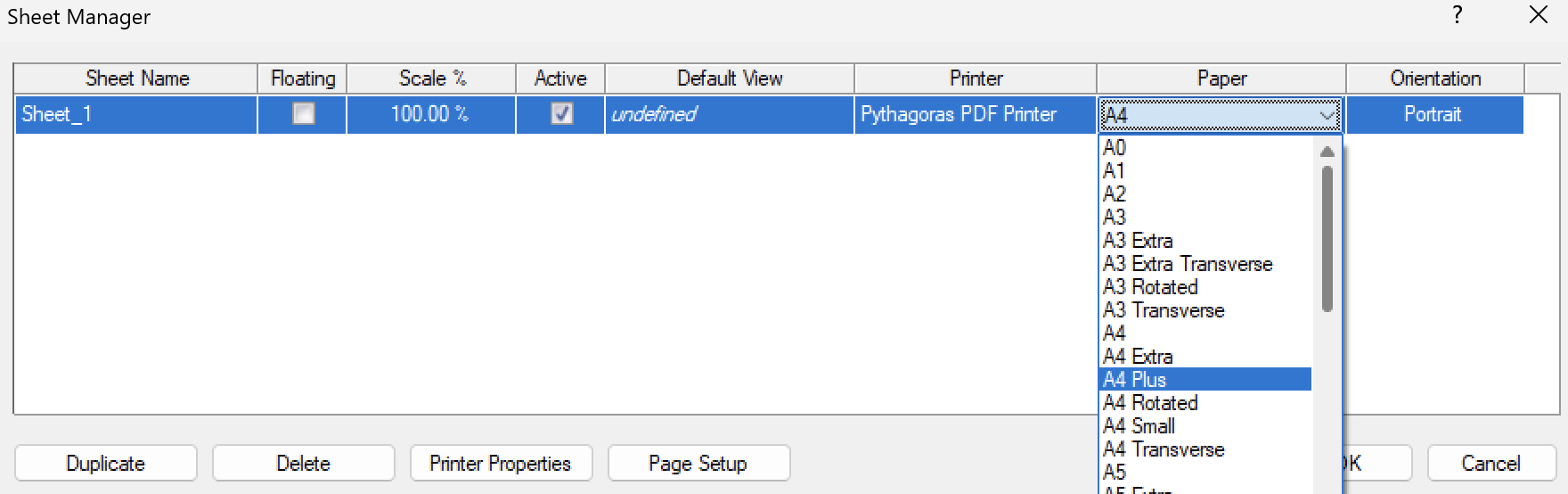
Choose a printer, paper size and orientation for your sheet
Open File > Sheets > Manage Sheets….
Select the sheet you want to configure.
In the Printer column, choose the desired printer.
In the Paper column, select the paper size.
Check the Orientation, then click OK.
Printer: physical or virtual
The printer list contains the printers installed on your computer through Windows, together with Pythagoras PDF Printer. The Windows default printer is automatically selected unless you have set a different default printer in Pythagoras.
You can choose between:
A physical printer, such as an office printer or plotter. You can use it to print on paper. You can also create a PDF while this printer is assigned to your sheet.
A virtual PDF printer, which creates a PDF file.
Available paper sizes
Select the printer first, then the paper size. Pythagoras adjusts the list of paper sizes to the selected printer.
PHYSICAL PRINTERS
For a physical printer, the list contains the sizes supported by the printer according to its settings. For example, an office printer may offer A4 and A3, while an A0 plotter may also offer larger sizes.
If you print a drawing using a different printer than the one it was originally made for, Pythagoras will display a warning message. If you continue, the drawing will be adjusted to the new printer settings.
VIRTUAL PDF PRINTER
With a virtual printer, you are not restricted to the paper dimensions of a physical device. The sizes you can choose depend on the selected PDF printer.
| Printer | Available paper sizes |
|---|---|
| Microsoft Print to PDF | Windows virtual printer. The available sizes depend on this printer’s configuration in Windows. |
| Pythagoras PDF Printer | Pythagoras’ built-in PDF printer. Inherits the available paper sizes from other installed printers, both physical and virtual. |
| Other PDF printers | Printers such as CutePDF, PDFCreator or Adobe PDF may offer additional paper sizes. These can also become available in Pythagoras PDF Printer. |
A paper size is missing
First, check which printer is assigned to your sheet.
Want to print on paper? Check whether your physical printer supports the required size and whether that size is available in its printer settings.
Want to create a PDF? Check whether the selected PDF printer offers the required size. You can use another PDF printer if necessary.
Using Pythagoras PDF Printer? Make the required size available through another installed printer, either physical or virtual. You can configure a custom size for that printer, if supported, or install a PDF printer that offers the size.
Then return to Manage Sheets and select the printer and the required paper size.
TROUBLESHOOTING
When trying to print a sheet, you receive the following error message: 'Printing of these sheets has failed.'
This error usually happens when the drawing was created on a different computer or by another user who selected a printer that isn't available on your system.
You’ll need to update the printer settings for the sheets in your drawing.
- Go to File > Sheets > Sheet Manager.
Select the sheet(s) you're trying to print.
In the bottom section, check the selected printer:
If it's unavailable, choose a printer installed on your computer.
Make sure to also verify or reselect the correct paper size.
Click ‘OK’ or ‘Apply’ to save your changes.
After this, try printing again.
Was this article helpful?
That’s Great!
Thank you for your feedback
Sorry! We couldn't be helpful
Thank you for your feedback
Feedback sent
We appreciate your effort and will try to fix the article