Default Styles and Library Styles in Pythagoras
In Pythagoras, you can choose how points, lines, and filled areas (polygons) appear in your drawing. For example, you might want to display a tree symbol, a special line representing a fence, or a hatch pattern for a paved area.
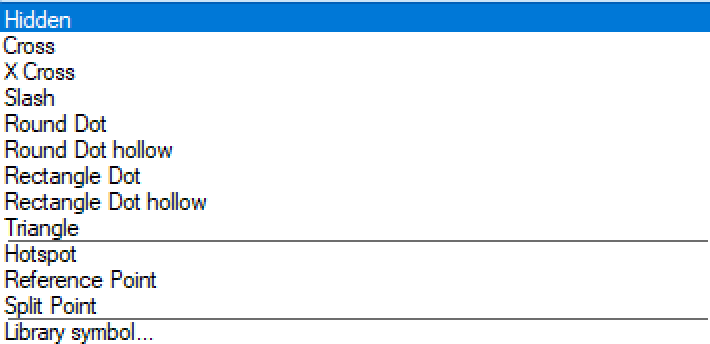
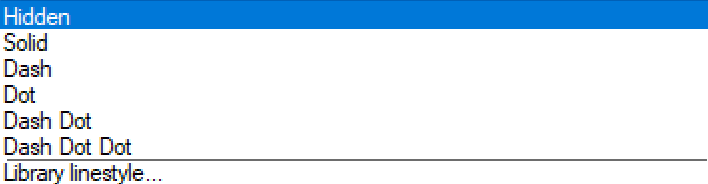
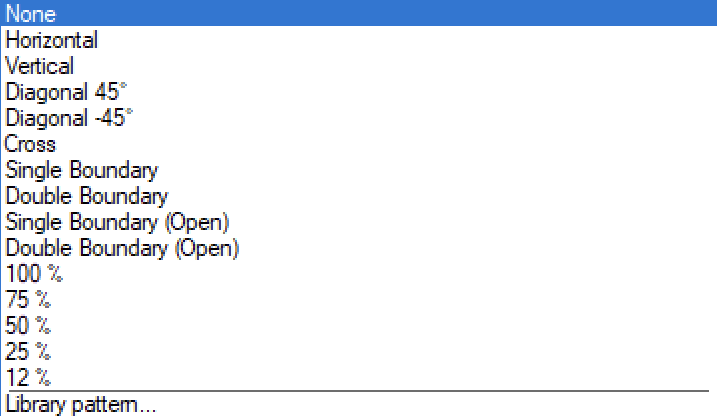
When editing a point, line, or polygon, you can select a built-in style directly from the Style, Line Style, or Pattern dropdown. To use a custom style, choose Library symbol..., Library linestyle..., or Library pattern... at the bottom of the list.
The main difference is that Default Styles have a fixed design, while Library Styles can be created and modified to suit your needs.
 |  |  |
Default Styles
Pythagoras includes built-in styles for points, lines, and polygons. These are ready to use, so you don't need to create them yourself.
Properties of Default Styles
- Not editable: Default styles cannot be modified or overwritten. They are built into the software and cannot be exported or replaced via Symbol Manager.
- Scale-independent: The display size of default styles always remains the same, regardless of the set scale (e.g. 1/100 or 1/500) or the scale factor (%).
- Fixed design: The shape and structure of the style are predefined. In some cases, you can still change the color or thickness of the object using the style, but the style itself will remain unchanged.
When should you use Default Styles?
Use Default Styles when the built-in appearance meets your needs. You can start drawing immediately without having to create your own styles.
Example - default point styles

Library Styles
Want to display a point, line, or polygon in a specific way? You can create your own style or import an existing one. In Pythagoras, these are called Library Styles.
There are three types:
Symbols: Custom point styles, such as a tree, manhole cover, or survey point.
Line Styles: Custom line appearances, such as a fence, pipe, or hedge.
Patterns: Custom fills for polygons, such as hatching for concrete or paving.
You can create, modify, and save Library Styles for future use.
When creating a Library Style, you give it a name and choose its properties. For example, you can specify whether a symbol should change size when the drawing scale changes.
When should you use Library Styles?
Use Library Styles when you need a specific appearance that isn't available among the Default Styles.
You can also save your custom styles for use in other drawings. To learn how, see the article about the Symbol Manager.
RELATED ARTICLES
Was this article helpful?
That’s Great!
Thank you for your feedback
Sorry! We couldn't be helpful
Thank you for your feedback
Feedback sent
We appreciate your effort and will try to fix the article