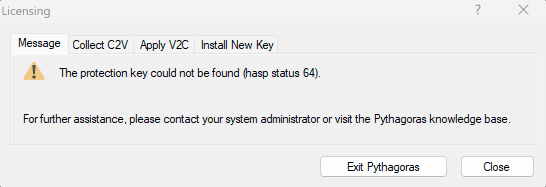
The protection key could not be found (hasp status 64).
When starting Pythagoras, you may see the message The protection key could not be found (hasp status 64).
This means the Sentinel License Service has detected a Cloned Sentinel SL storage. This error only affects software licenses stored locally on the computer. Changes caused by virtualisation software, such as Parallels updates, can invalidate that fingerprint and trigger a cloned license detection.
The license itself is not lost, but it is temporarily blocked for safety reasons.
SOLUTION
STEP 1: COLLECT C2V
Start Pythagoras.
Open Licensing.
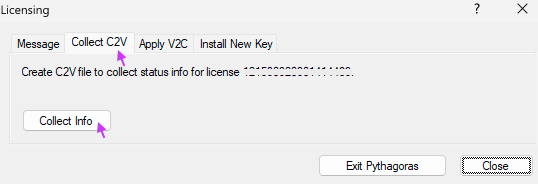
Go to the tab Collect C2V.
Click Collect Info.
Save the generated C2V file.
Then click the button Exit Pythagoras or Close to choose another license.
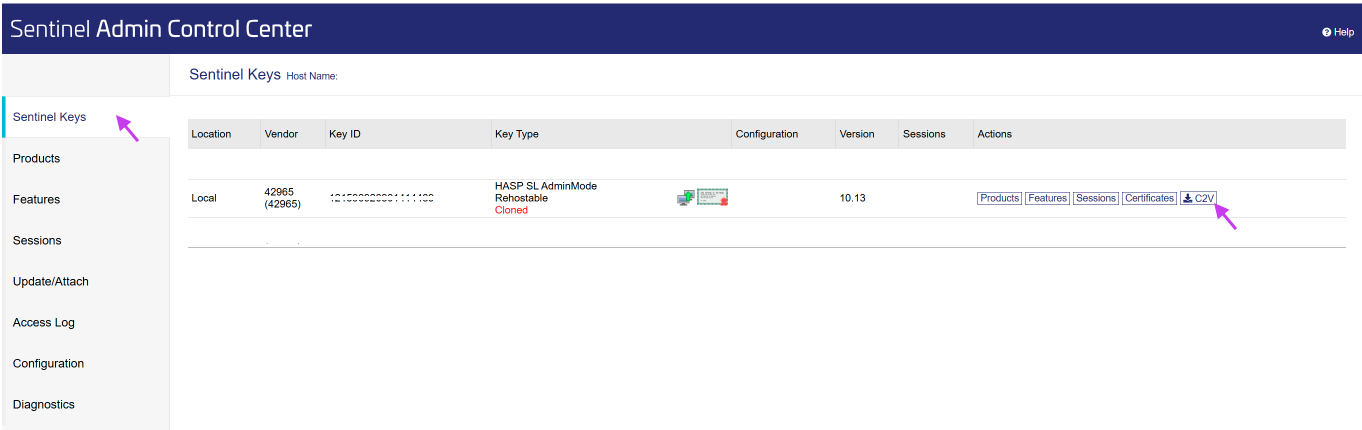
If Pythagoras does not start:
Open a browser and go to the Sentinel Admin Control Center :
http://localhost:1947.- Find the affected key in the list.
- In the column Actions, click the button C2V.
- The C2V file will be automatically downloaded (usually in your Downloads folder)
STEP 2: SEND THE C2V FILE
Email the collected C2V file to Pythagoras Support (support@pythagoras.net).
Support will generate a V2C update file to repair the license.
STEP 3: APPLY V2C
Start Pythagoras
In the Licensing window go to the tab Apply V2C.
Click Apply Update.
Select the V2C file provided by Support.
The confirmation message V2C file was loaded successfully! appears.
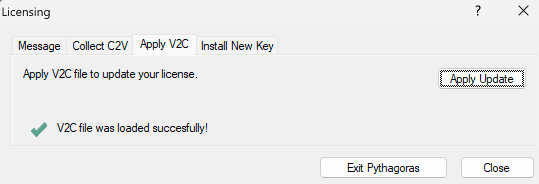
Click Exit Pythagoras or Close.
Your license is now activated and Pythagoras is ready for use.
Was this article helpful?
That’s Great!
Thank you for your feedback
Sorry! We couldn't be helpful
Thank you for your feedback
Feedback sent
We appreciate your effort and will try to fix the article