Positioning a drawing on a sheet
This article explains how to control the position, scale and rotation of your drawing on a sheet. Using Page Setup, you make sure the drawing fits correctly on the paper and prints exactly as expected.
When you open a new drawing, the outline of the default sheet (A4 - Portrait) is shown as a dashed rectangle. This outline is visible only when the sheet is set to non-floating, which you manage via the Sheet Manager. If you want a different paper size or orientation, see How to choose a printer and paper size.
The sheet is initially centred around coordinate (0,0). When you import data with real-world coordinates, such as georeferenced data, the drawing remains at its coordinates while the sheet stays at its original position.
STEPS
Open Page Setup
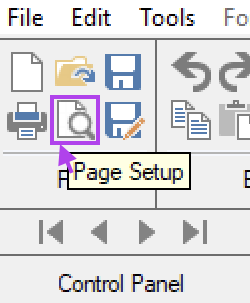
Go to File > Page Setup... or use the Page Setup icon in the toolbar.
You now enter Page Setup mode. All other drawing tools are temporarily disabled.
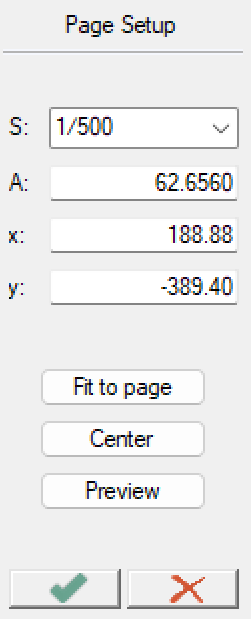
The Page Setup panel appears on screen with controls for:
Scale (S)
Rotation (A)
Position (X, Y)
Buttons for Fit to Page, Center, and Preview
Position the sheet (X, Y)
If the sheet is far from your drawing and the dashed rectangle is not visible:
Click Center to automatically centre the sheet on the drawing.
This button is only available when the sheet is set to non-floating.If the sheet is floating, use Preview to centre the view visually.
For precise positioning, move the cursor over the plan sheet until it changes to a hand icon.
Click and drag to reposition the sheet so the drawing fits within the page preview.
Set the drawing scale (S)
In the Page Setup panel, check the value next to S: — the default is 1/500.
Choose one of the following:
Type a scale manually (e.g. 1/200) or select a scale from the dropdown.
Click Fit to Page to automatically resize the drawing to fit the page (only available when the plan sheet is non-floating). If the automatic value is non-standard (e.g. 1/459.1), round it to a standard value such as 1/400.
Click once in the drawing to apply the change.
Optional: Rotate the sheet (A)
Move the cursor to a corner of the sheet until the rotate cursor appears.
Click and drag to rotate the sheet to match your drawing orientation.
The exact rotation angle is shown next to A in the Page Setup panel.
When finished, click once in the drawing to confirm.
For precise alignment, you can also use the tools Align... or Orient objects or sheet from the Edit toolbar.
Preview and confirm
Click Preview to check how the layout will be printed.
Adjust scale, rotation, or position if necessary.
Click the green checkmark in the Page Setup panel or [Enter] to confirm and to leave the Page Setup mode.
RESULT
The drawing is correctly positioned, scaled, and oriented on the active plan sheet.
What you see on screen matches the printed output or exported PDF.
From here, you can continue with File > Print… or File > Print to PDF… to create your final output.
Was this article helpful?
That’s Great!
Thank you for your feedback
Sorry! We couldn't be helpful
Thank you for your feedback
Feedback sent
We appreciate your effort and will try to fix the article