Divide a polygon using a hinge point
Menu: Bonus Tools > Polygon tools > Create polygon by target
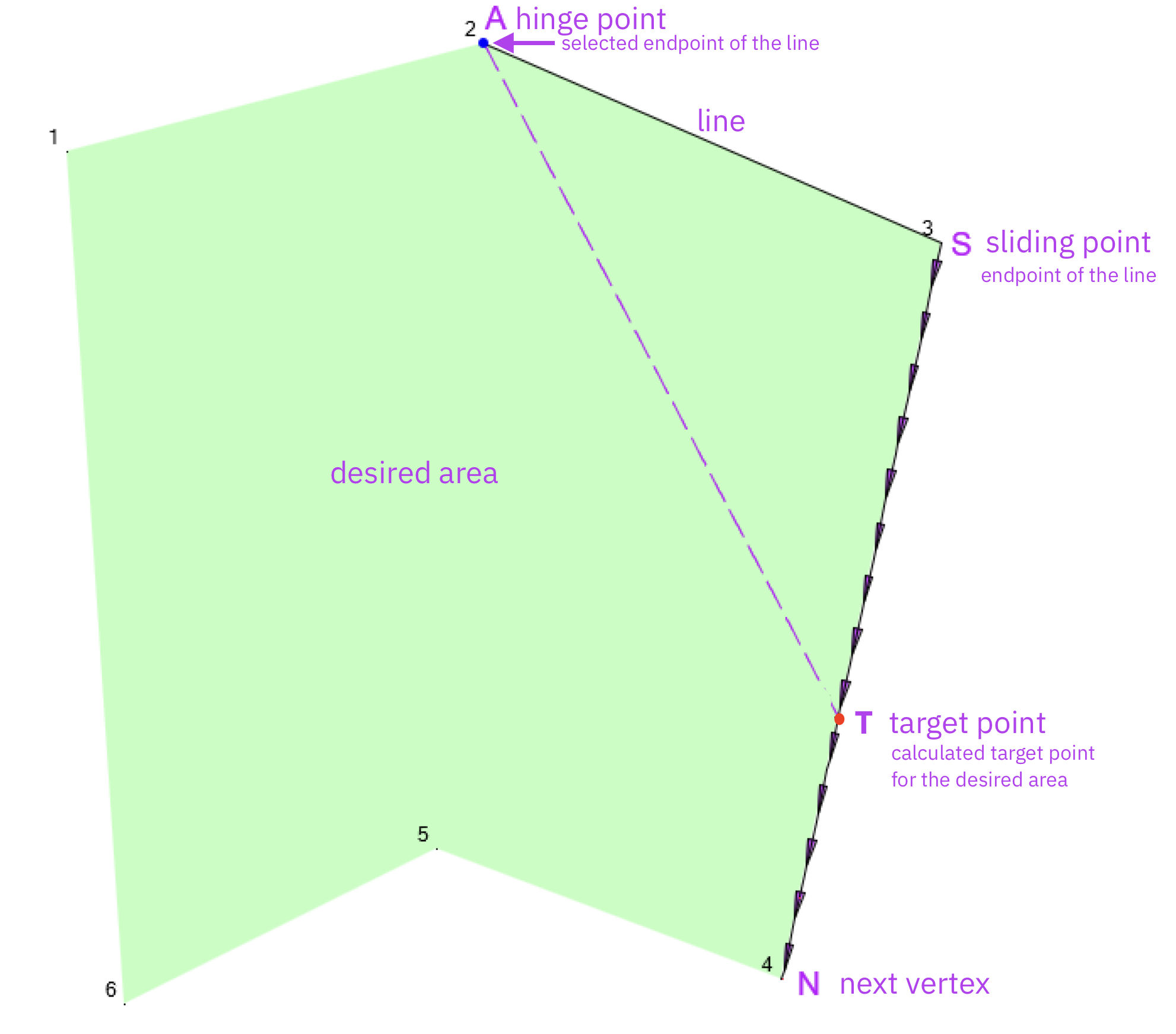
Use Create polygon by target with the hinge point method to calculate a new boundary while keeping one endpoint of the selected boundary fixed.
The selected boundary rotates around the hinge point. The opposite endpoint is repositioned to a calculated target point so that the polygon reaches the specified area.
STEPS
- Draw or select a line on the boundary of the polygon.
- Select the polygon.
- Select the boundary line.
- Select the endpoint of the line that must remain fixed. This point becomes the hinge point.
- Go to Bonus Tools > Polygon tools > Create polygon by target.
- The dialog displays the current polygon area.
- Enter the required polygon area.
- Use a period (.) as the decimal separator.
- Click OK.
A red target point is created on the next polygon edge.
- Use the target point as the new endpoint of the boundary. Modify the polygon using Tools > Edit polygon > Move point. Or draw a new polygon.
- Remove the temporary target point using Bonus Tools > Polygon tools > Delete target points.
Notes
- The selected line must be an existing boundary of the polygon.
- The selected hinge point must be one of the endpoints of the selected boundary.
- The target point is always calculated on the next polygon edge adjacent to the sliding point.
- The requested area is the area of the adjusted polygon after the calculation.
- The polygon cannot always be reduced to any arbitrary area. If the requested area is smaller than the minimum geometrically possible area for the selected hinge point and boundary, the command displays a warning.
RESULT
The boundary is recalculated while one endpoint remains fixed, allowing you to adjust the polygon to the required area.
Was this article helpful?
That’s Great!
Thank you for your feedback
Sorry! We couldn't be helpful
Thank you for your feedback
Feedback sent
We appreciate your effort and will try to fix the article