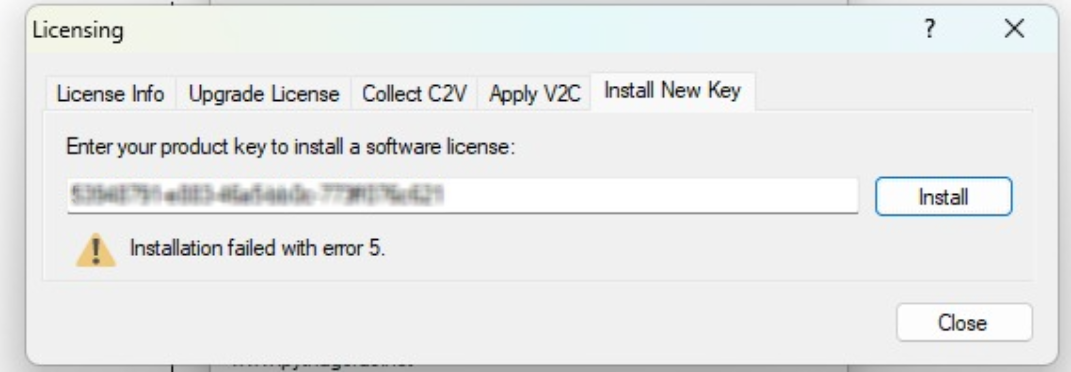
Installation failed with error 5.
When you receive the message Installation failed with error 5 during license activation, it means that the standard method (via product key) did not succeed. This usually happens due to security settings, firewall rules, or a missing internet connection that prevent the activation from completing online.
The solution is to perform a manual installation via a C2V/V2C exchange.
PROCEDURE
Close Pythagoras completely
Make sure the program is no longer running.Open the Sentinel Admin Control Center
In your browser, go to:http://localhost:1947Create a C2V file
Go to the tab Sentinel Keys
Find the correct key in the list
In the column Actions, click the button C2V
The C2V file will be automatically downloaded (usually in your Downloads folder)

Send the file
Email the C2V file to: support@pythagoras.netReceive and install the V2C
Our support team will then send you a V2C file.Start Pythagoras
Go to Licensing > tab Apply V2C
Click Update and select the V2C file
Close the window and restart Pythagoras
Your license is now activated and Pythagoras is ready for use.
Was this article helpful?
That’s Great!
Thank you for your feedback
Sorry! We couldn't be helpful
Thank you for your feedback
Feedback sent
We appreciate your effort and will try to fix the article